How to adjust email notification settings
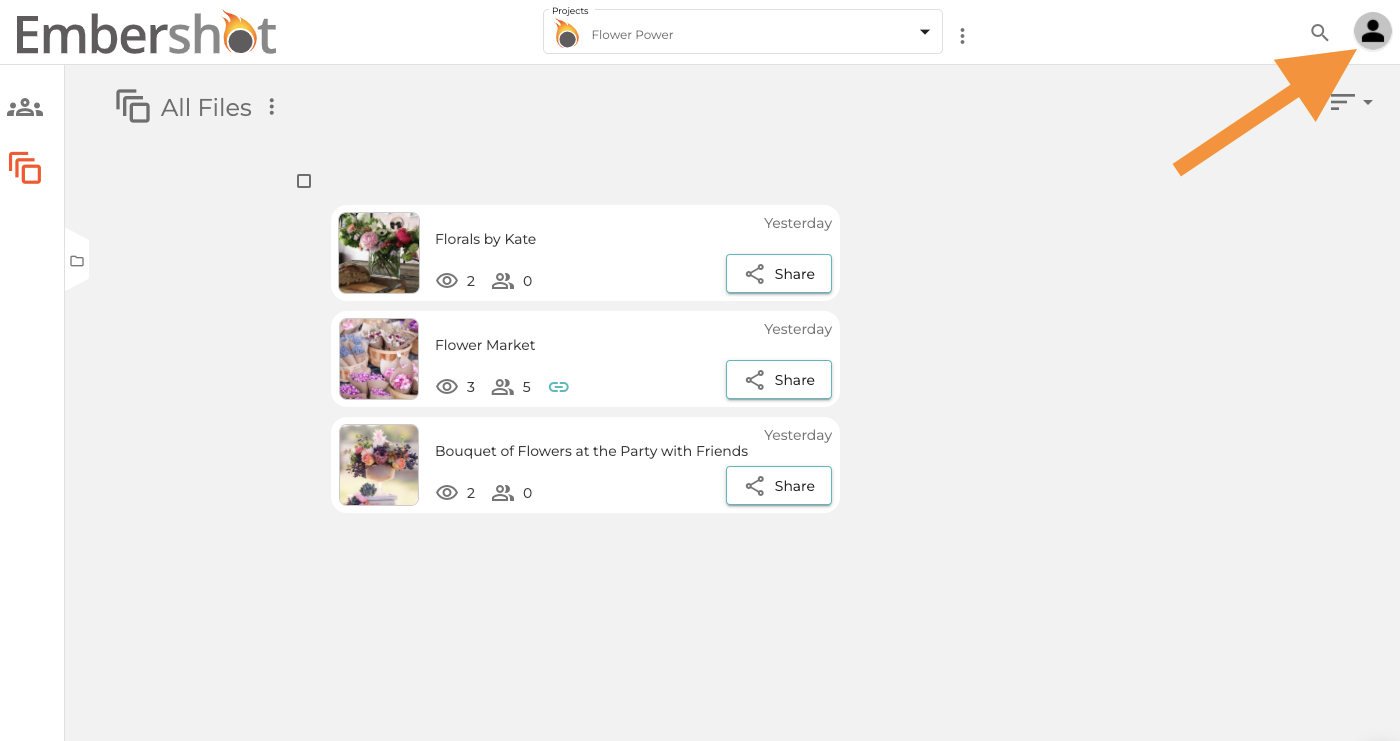
Step 1: Click on the 'Account' icon in the top right corner.
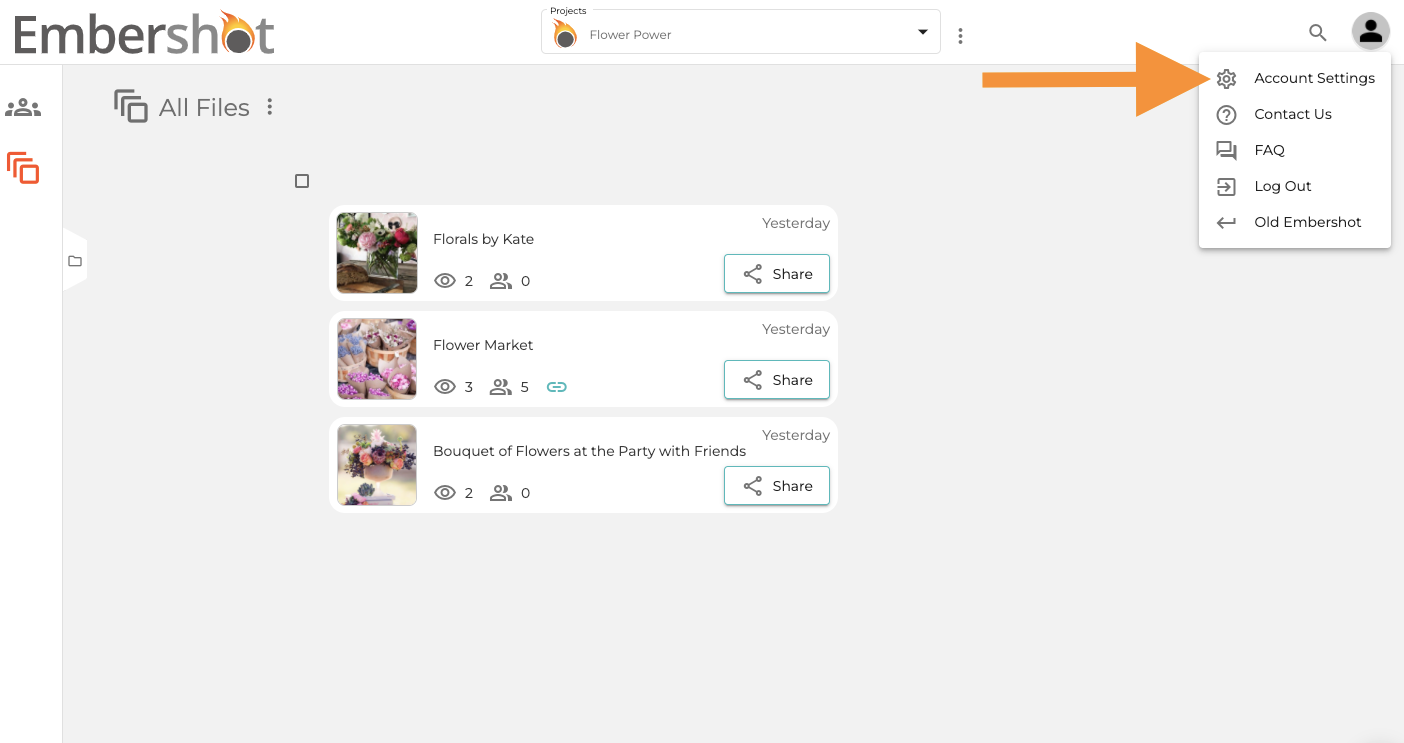
Step 2: From the dropdown, select 'Account Settings.'
Step 3: Under the 'Notifications' tab on the left, select your preference for receiving notifications.
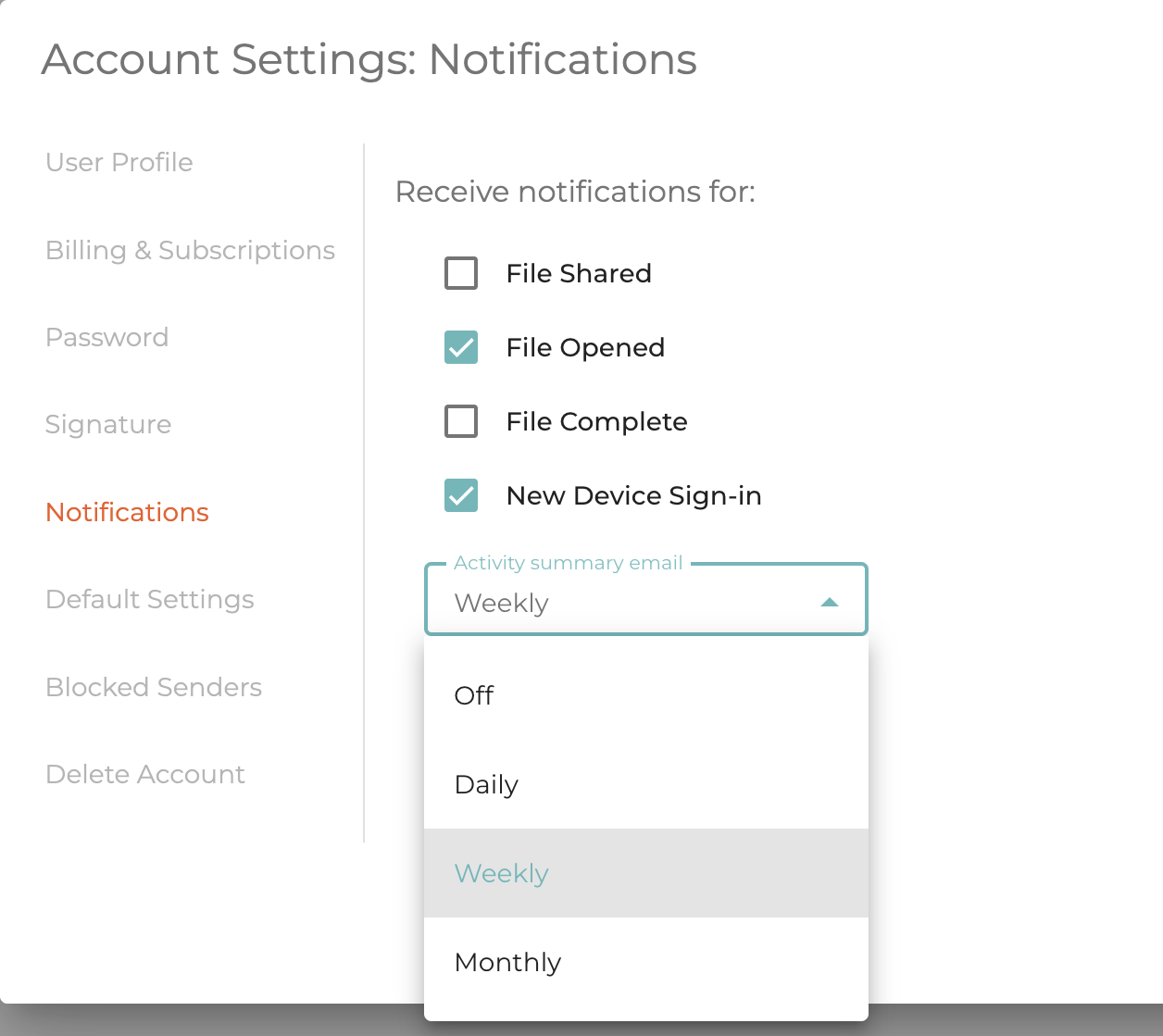
Note: 'File Complete' notifications are available to Enterprise Account subscribers only.
Notification Definitions:
File shared - These are email notifications that confirm when you (or another project admin) send out files.
Note: if you turn off your notifications, other admins on the project may still receive them.
File Opened - These are email notifications that let you know when a recipient views the file for the first time.
File Complete - These are email notifications that let you know when a recipient has completed reading/viewing/listening to a file.
Activity summary email - A summary of what happened to the files you shared: who opened them and when, who downloaded or printed them, and who has not opened them yet. Choose Daily, Weekly (the default), Monthly or Off. It is sent at 9 pm Pacific time (weekly on Sundays, monthly on the last day of the month), and only when something happened.
For files with Advanced File Tracking (included with Enterprise accounts), the summary also shows how long each person spent reading and how many pages they read.
New Device Sign-In - These are email notifications that inform you each time your account is accessed.