How to see who opened the links your organization sent
Enterprise Site Admins can see every Embershot link their organization's email made: links from the Embershot mail relay, from the Outlook and Gmail add-ins, and from your organization's API keys. For each link you see who it was sent to, who opened it, and who opened it without being on the original email (someone passed the link on).
Step 1: Log into your Enterprise Site Admin account and select the Site Admin Project from the Project dropdown menu.
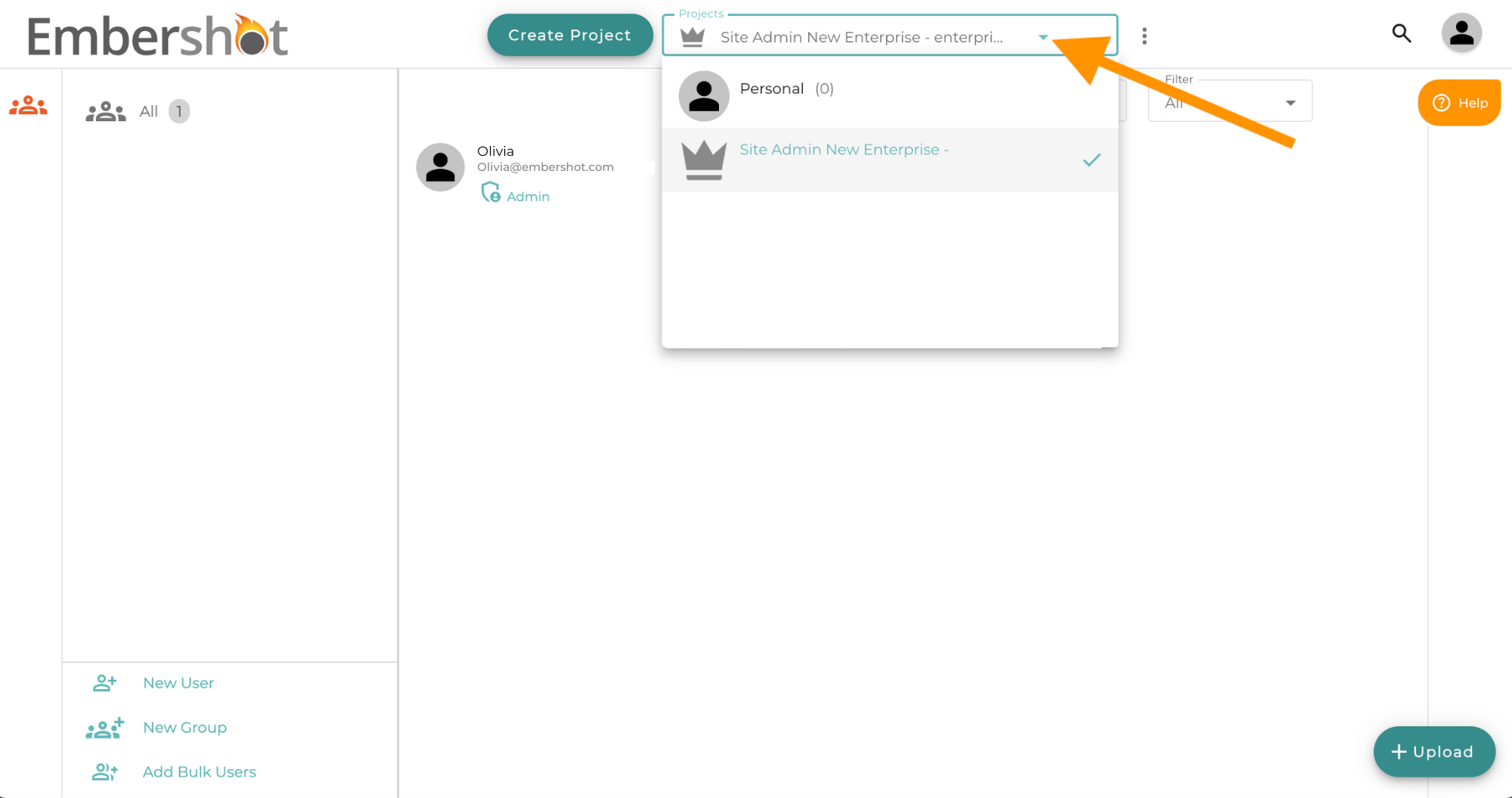
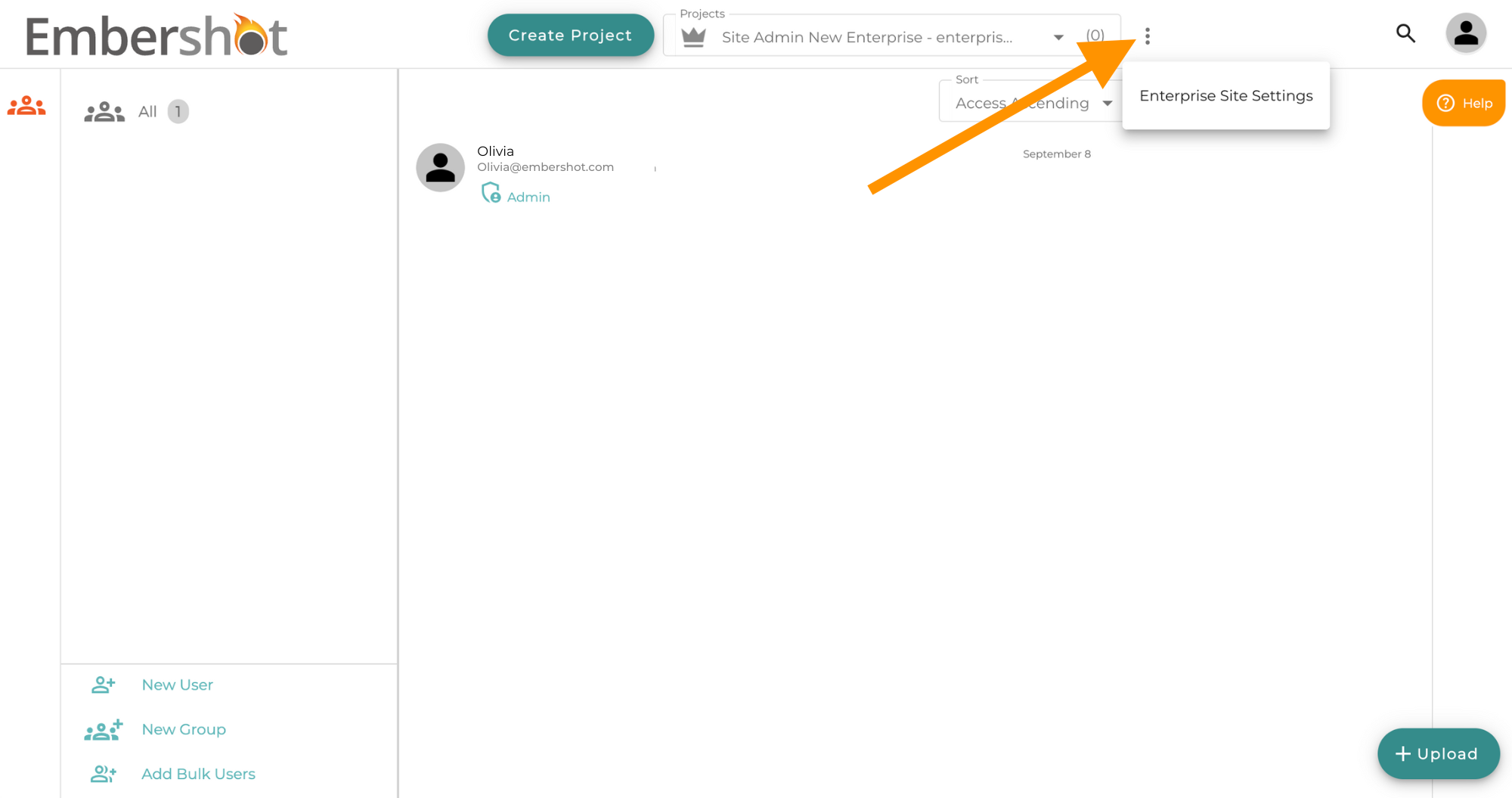
Step 2: Click the 'More' menu and select 'Outbound Link Reports'.
Step 3: Choose 7, 30 or 90 days. The totals at the top show the links sent, the people they were sent to, the readers, how many readers were not on the original email, and how many watermarked copies were ready before the reader opened the link.
Step 4: Click a link to see its readers: whether each was on the original email, how many times they opened it, how many pages they viewed and for how long.
Step 5: Click 'Download CSV' for a spreadsheet of the links in the period.
Notes
- A reader marked with the forward icon was not on the email the link went out in: the person they got it from passed it on.
- "Not on the original email" is known for links whose recipients Embershot was told: the mail relay always sends them; the add-ins send the people on the email when the link goes in, so someone added to the email afterwards shows as not on it.
- The same mark appears in a file's Viewers list, next to people who opened it through a safe share.
- Only Enterprise Site Admins see this page. Questions: support@embershot.com.
See 'How to choose how your organization's attachments become links' for the settings.