How to choose how your organization's attachments become links
Enterprise Site Admins choose how the Embershot mail relay turns your organization's outgoing attachments into Embershot links.
Step 1: Log into your Enterprise Site Admin account and select the Site Admin Project from the Project dropdown menu.
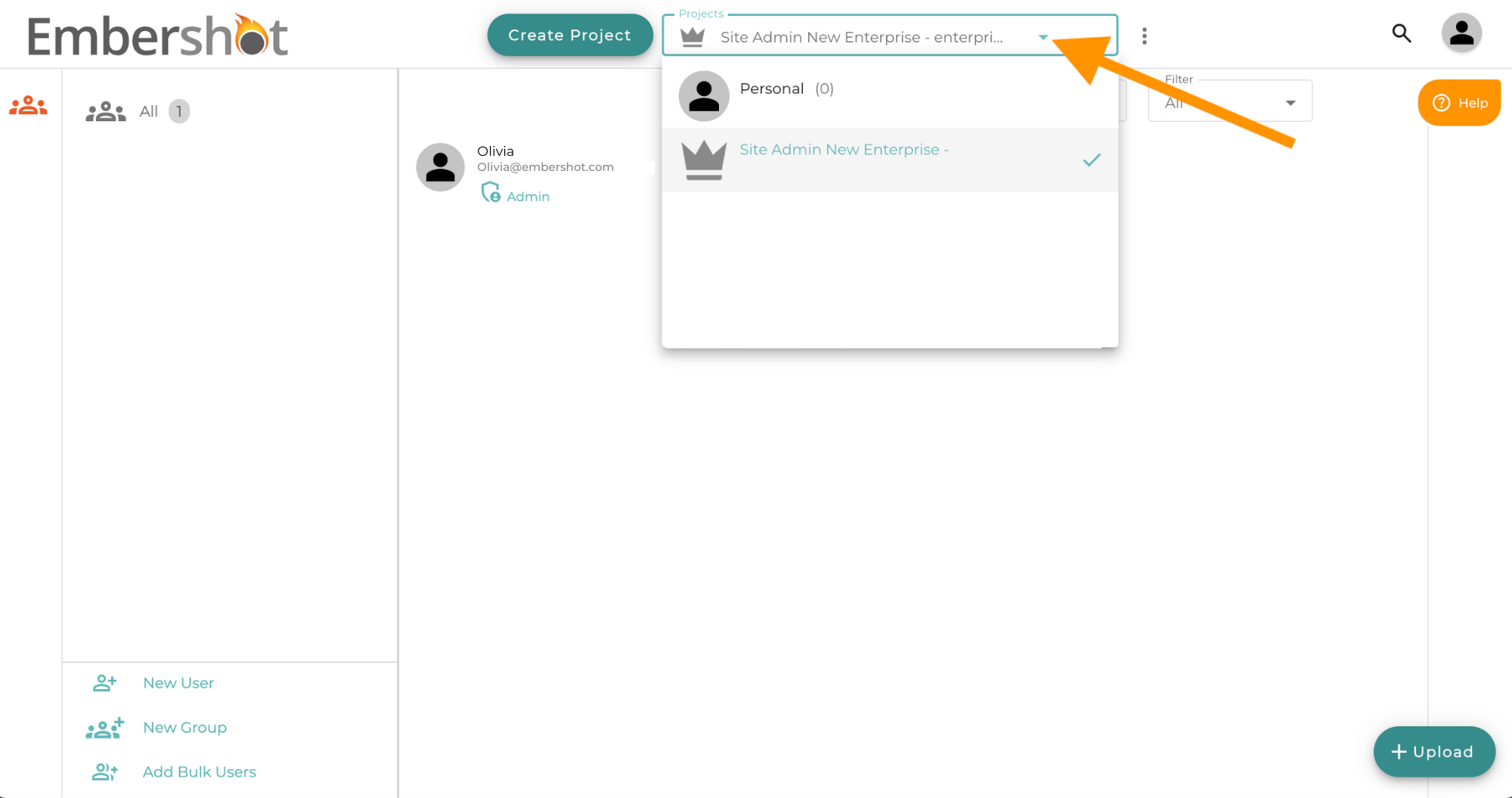
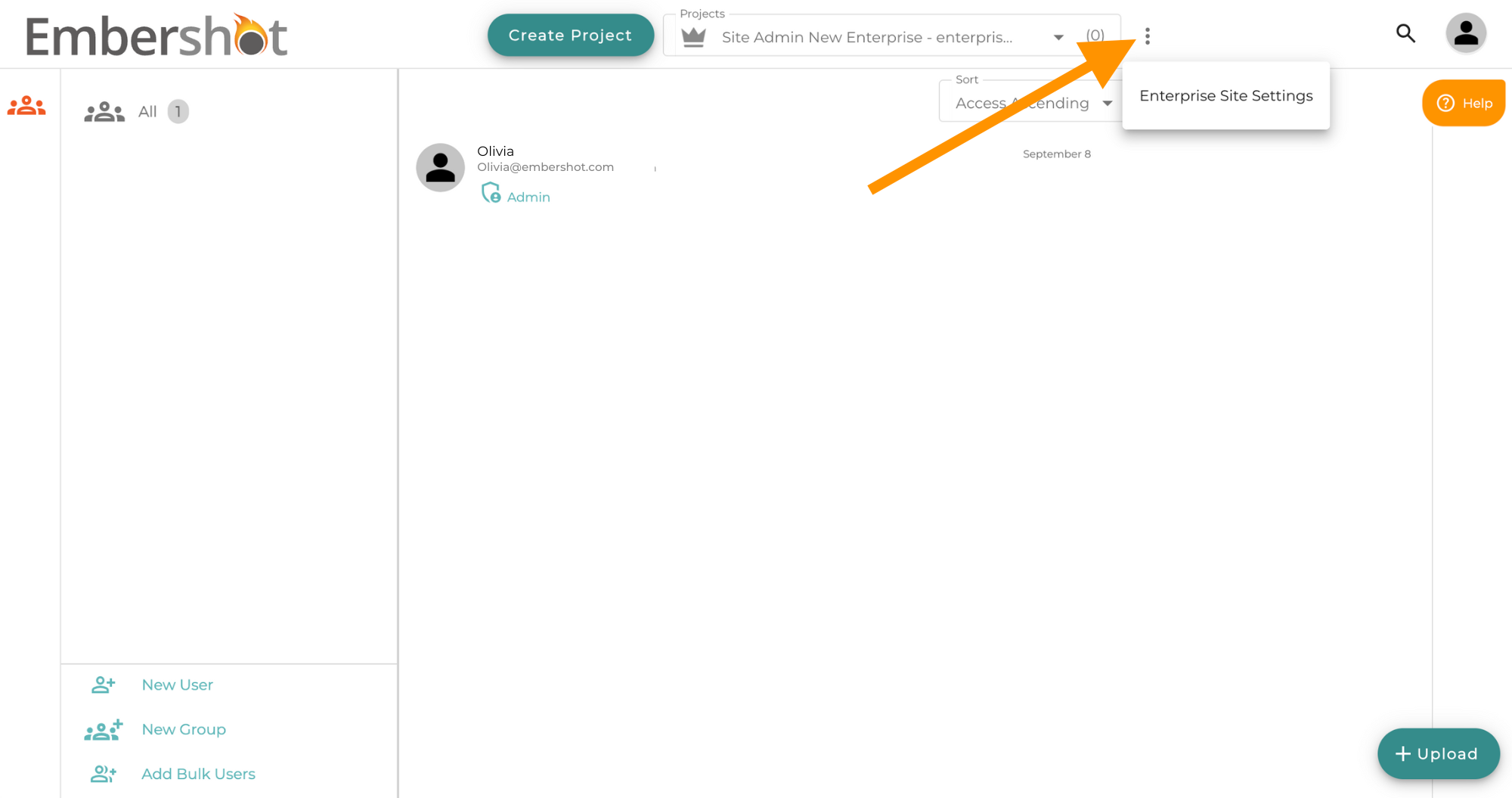
Step 2: Click the 'More' menu and select 'Outbound Link Settings'.
Step 3: Choose your settings and click 'Save'. The mail relay uses them within a minute.
- Mail relay: On turns attachments into links. Test sends email unchanged while the relay only checks it. Paused sends email unchanged.
- Who can open a link: anyone with the link after confirming their email, or only the people on the email.
- Make each recipient's copy as the email goes out: each recipient's watermarked copy is ready before they open the link. Nothing is granted until they confirm their email. Unused copies are deleted after the number of days you choose (1 to 30).
- Links expire: never, or after a number of days.
- Attachments that become links: PDF today. Word, Excel, PowerPoint and images are coming.
Notes
- Test and Paused can only make the relay more careful than the setup Embershot made for your organization; to turn the relay on for the first time, write to support@embershot.com.
- The Outlook and Gmail add-ins keep each person's own choice of who can open a link.
See 'How to see who opened the links your organization sent' for the reports.