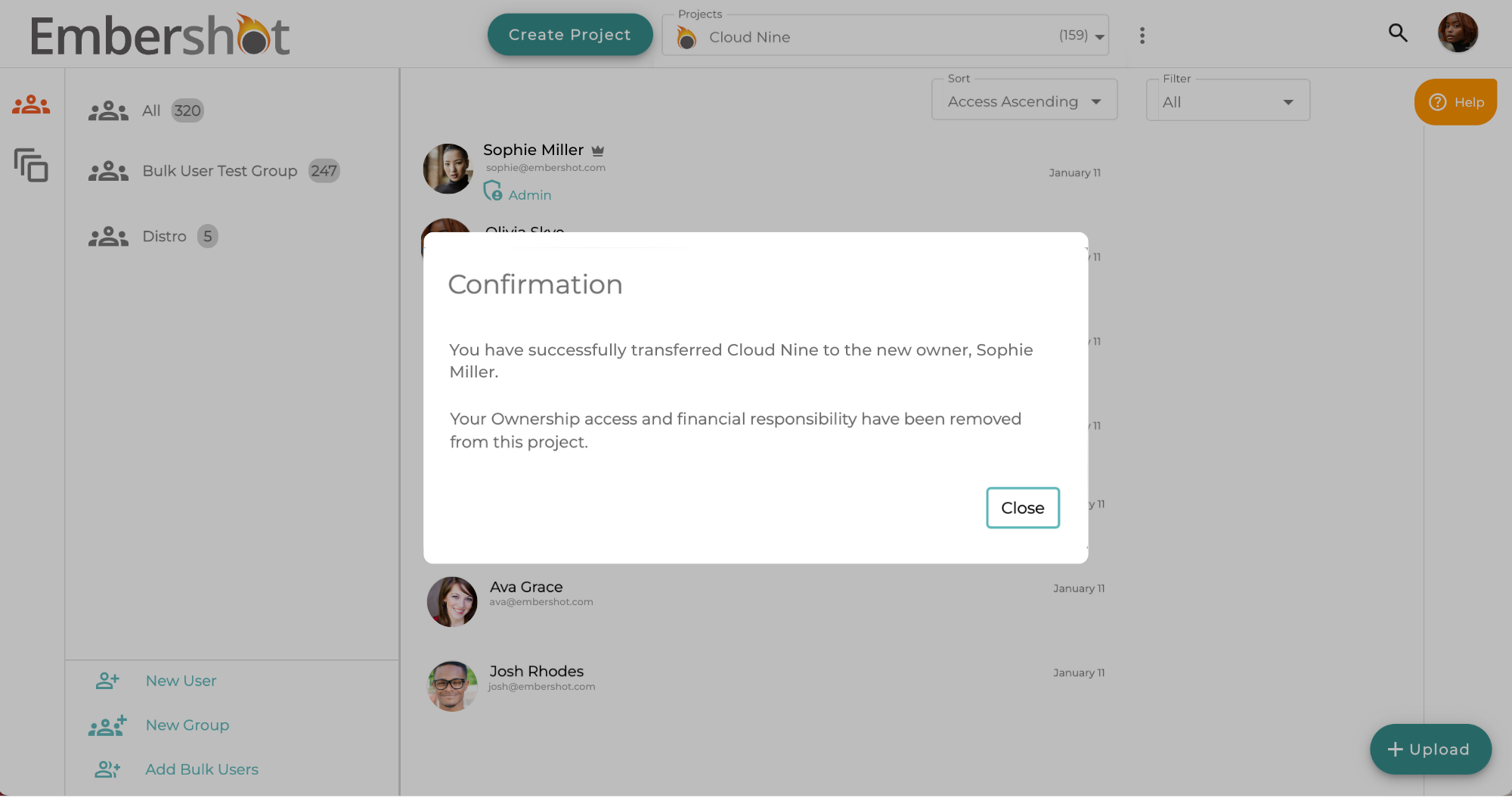
How to Transfer Project Ownership
The Project Owner holds financial responsibility for all Project fees. Ownership can only be transferred to another Project Admin who has an active Pro account and an up-to-date credit card on file.
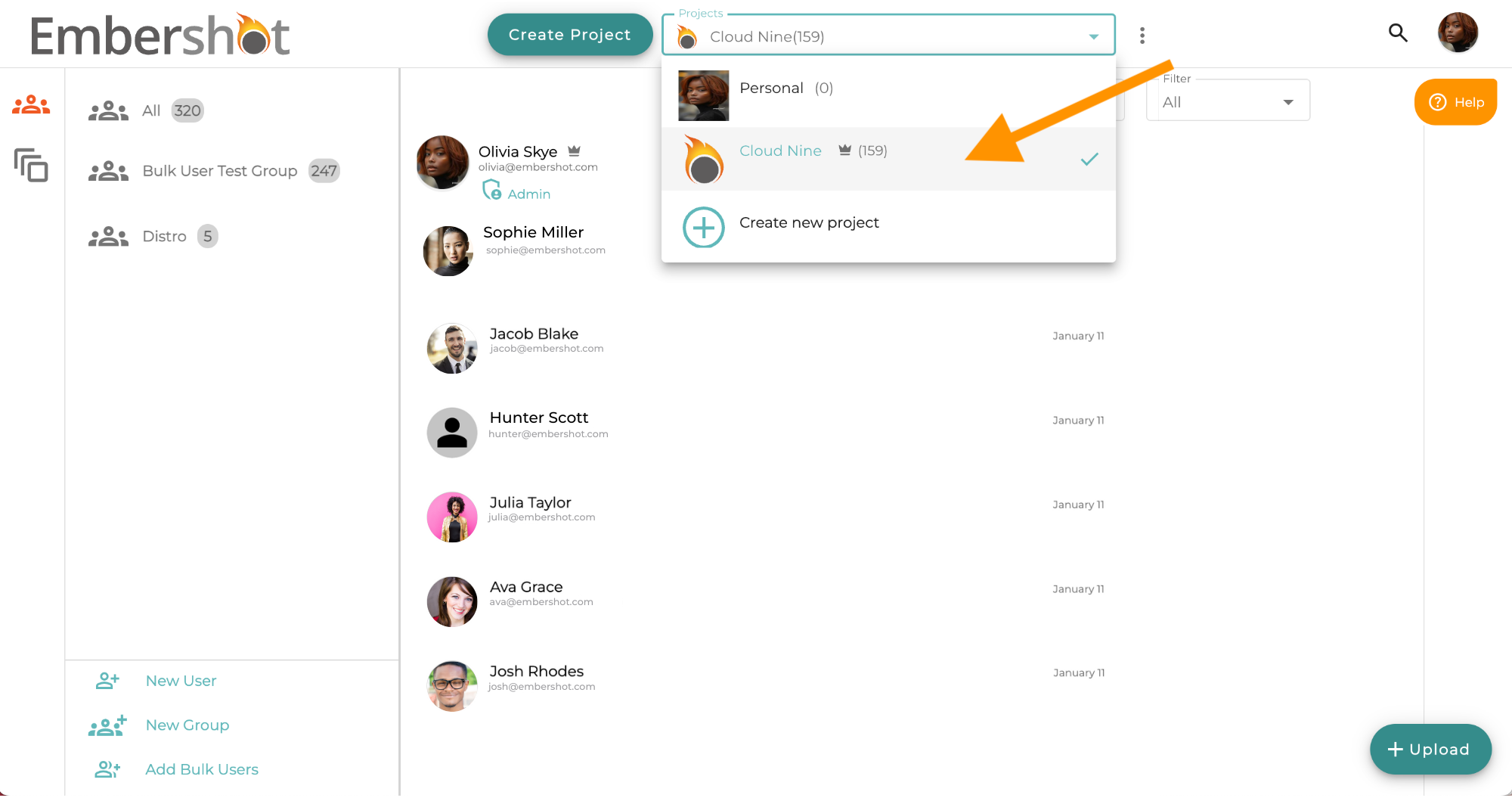
Project Ownership is indicated by a Crown icon, visible in the Project dropdown menu next to owned projects and in the Groups/Users list beside the Owner's name.
Transfer Steps:
Step 1: Select the desired project from the Project dropdown menu
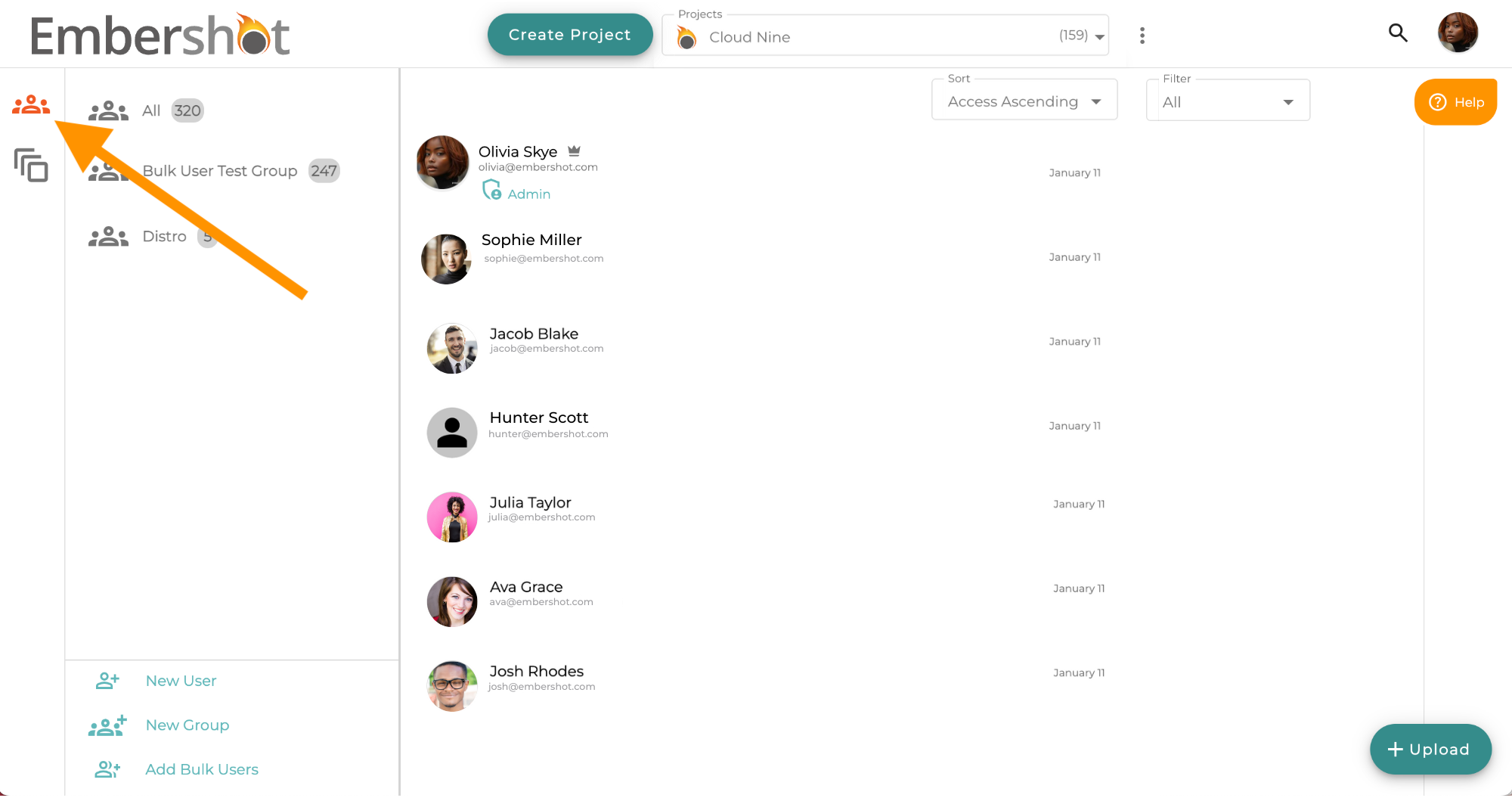
Step 2: Go to the Groups/Users section
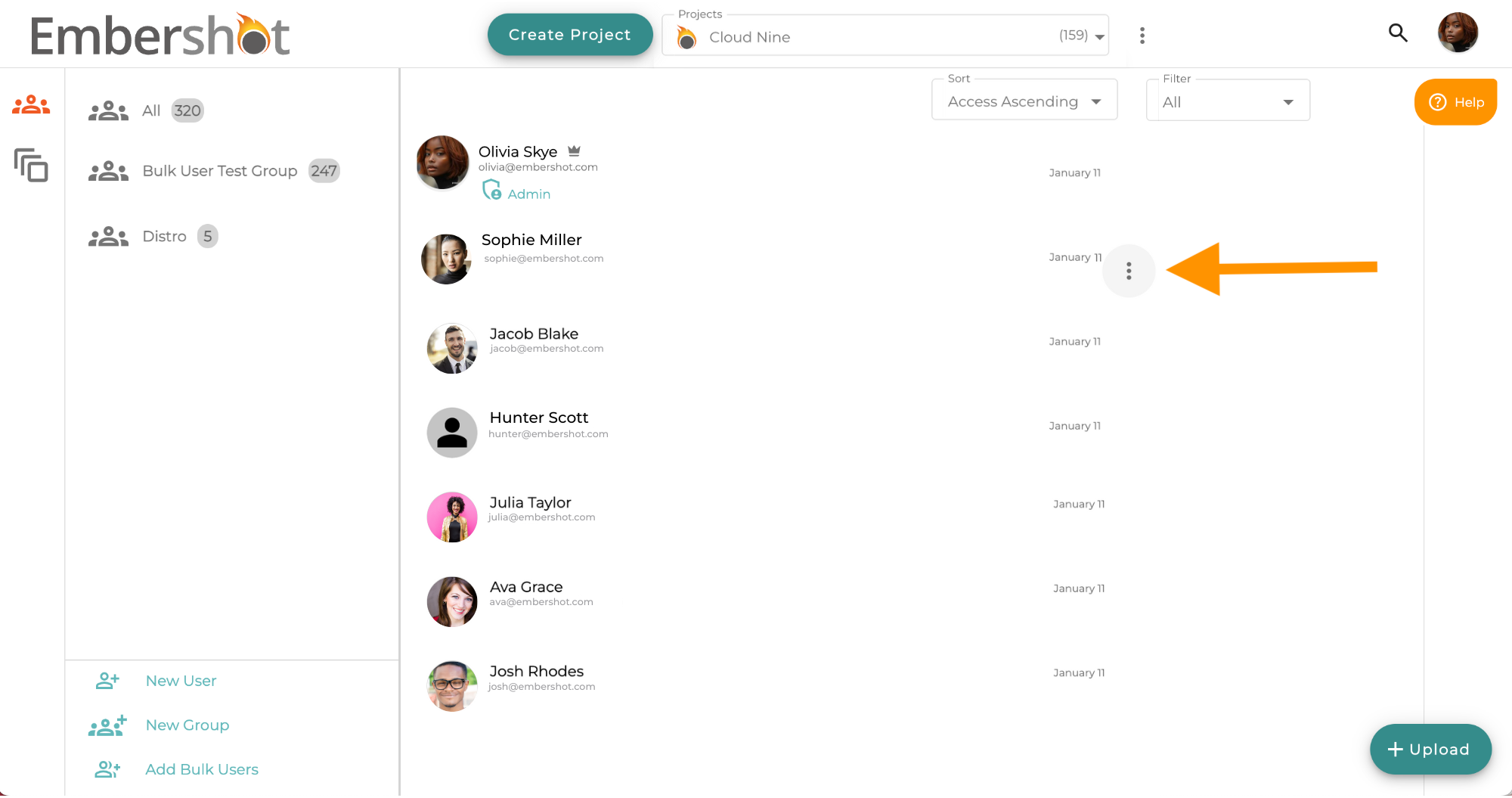
Step 3: Mouse over the user you would like to transfer ownership to and open the More menu next to their name.
Note: If the user isn't already in the project, click the 'Add New User' button in the bottom left to add them before continuing. Make sure the user has a Pro account.
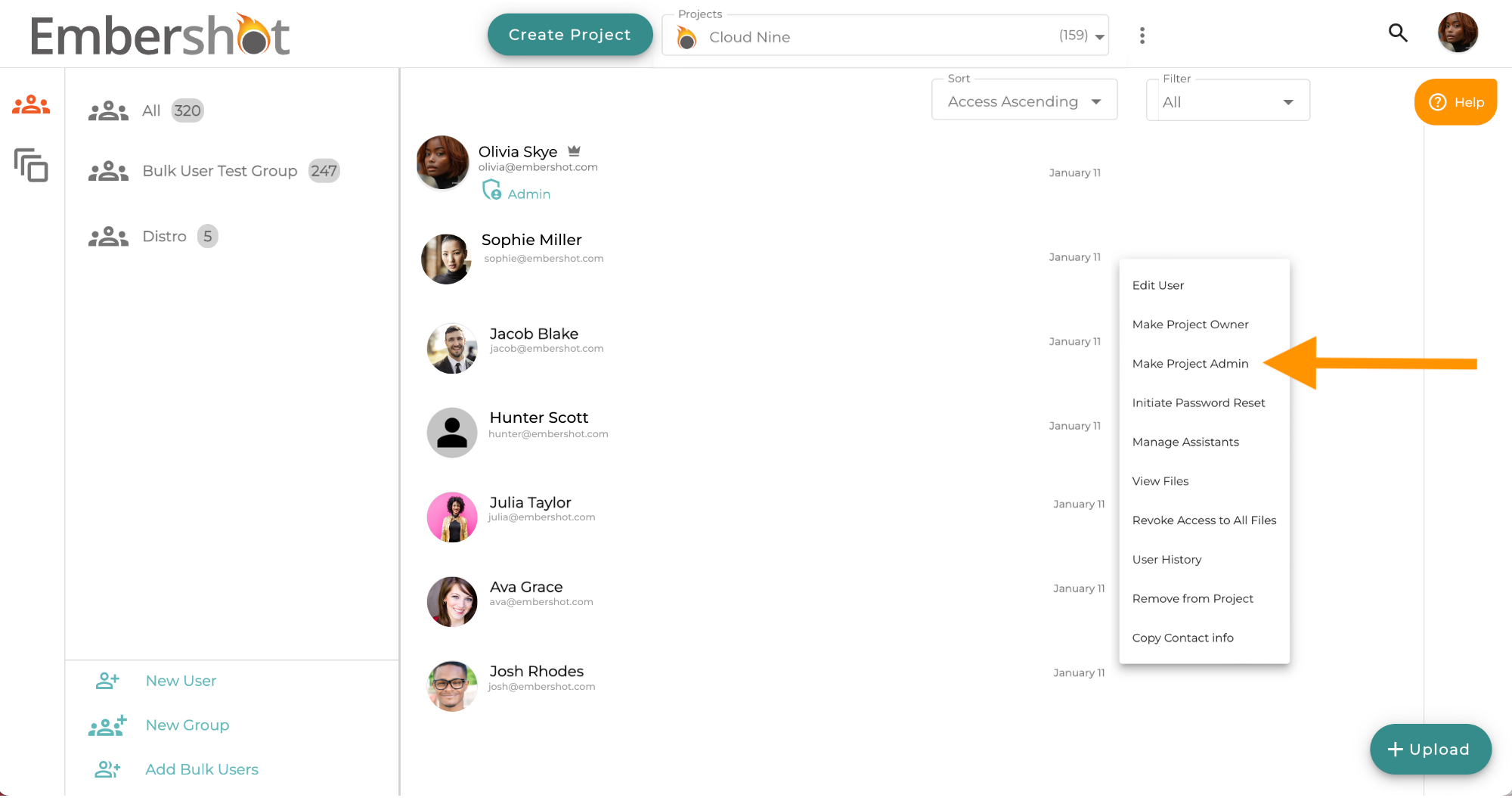
Step 4: If the user isn't already an admin, from the 'More' menu select 'Make a Project Admin.'
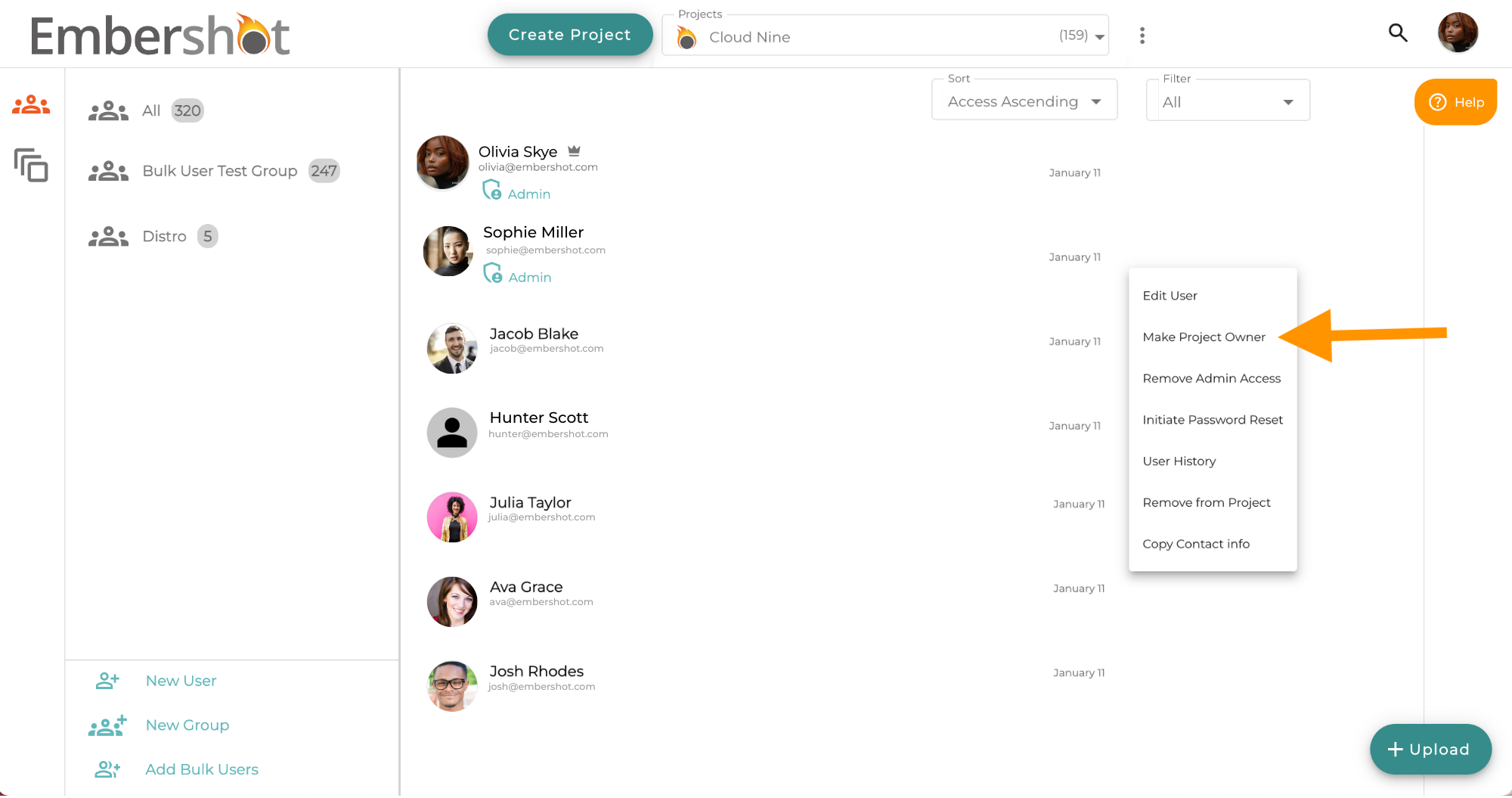
Step 5: Once the user has admin status, open the 'More' menu again and select 'Make Project Owner.'
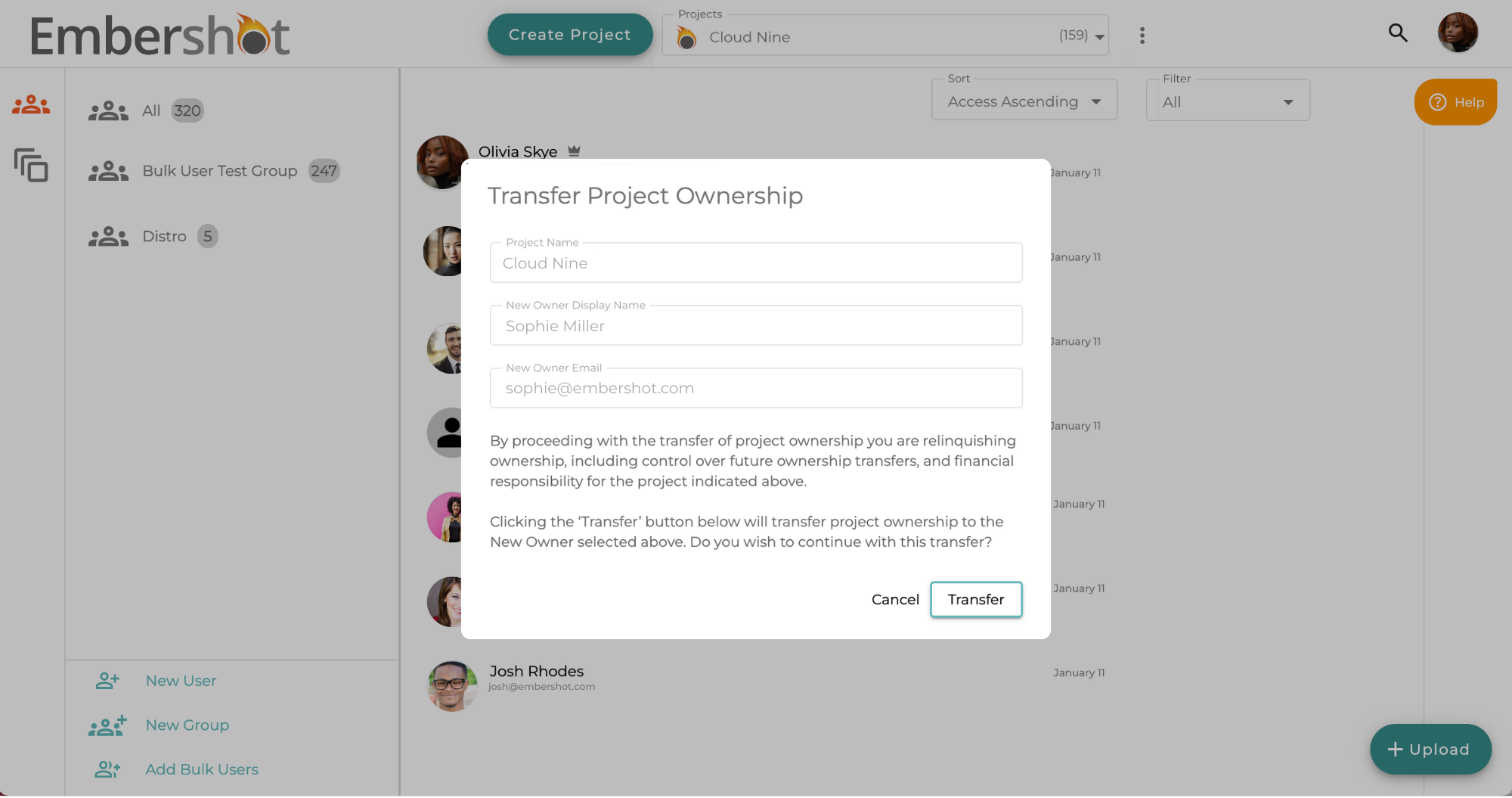
Step 6: Confirm that the transfer information is correct and click 'Transfer.'
Step 7: When the transfer is confirmed the new Owner will be moved to the top of the list and the crown icon will be moved to their name. If the name is not moved to the top of the list, refresh the page.