How to register an existing account with Google Authenticator
Some users enable two-factor authentication for Embershot in an effort to protect data and secure personal information. These users will be required to enter an authentication code when logging into their Embershot account.
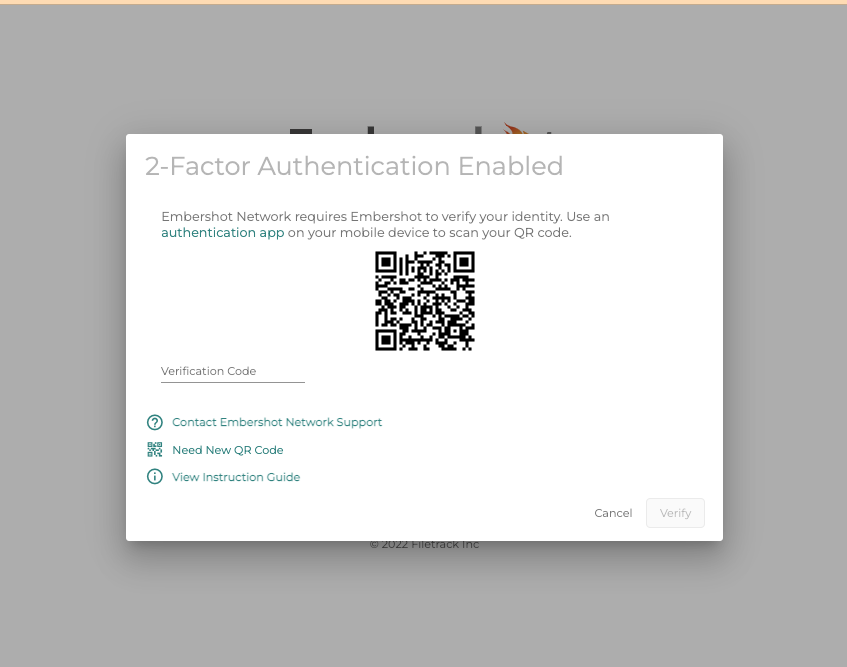
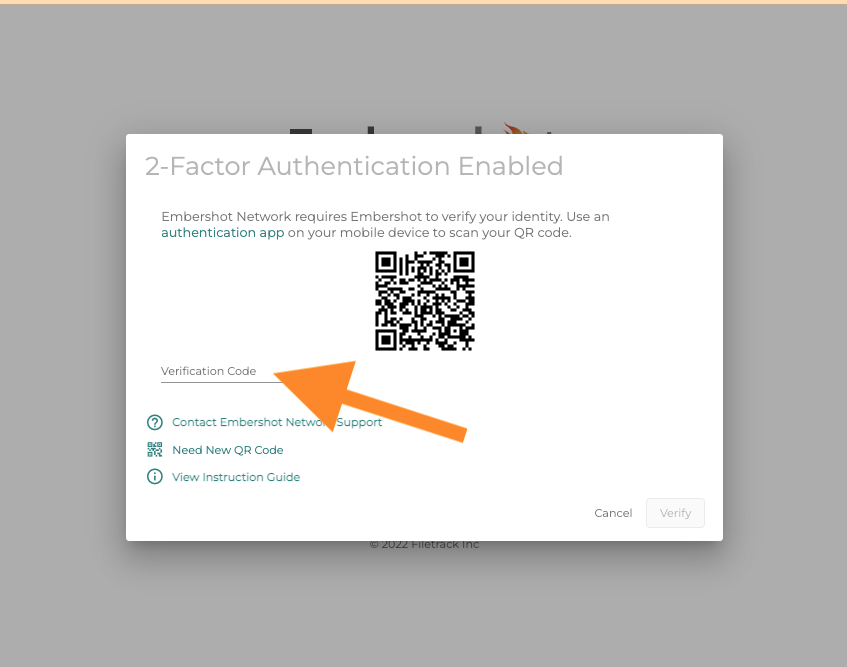
Step 1: Log in to www.embershot.com on a desktop computer. After entering in your username and password you will be prompted to scan a QR code.
Step 2: Install Google Authenticator (or another trusted 3rd-party authentication app): On your mobile device open the Apple App Store or Google Play store and install Google Authenticator (if not already installed on your mobile device)

Step 3: Launch Google Authenticator on your mobile device. Click the add "+" sign and select "Scan QR code" or "Scan Barcode".
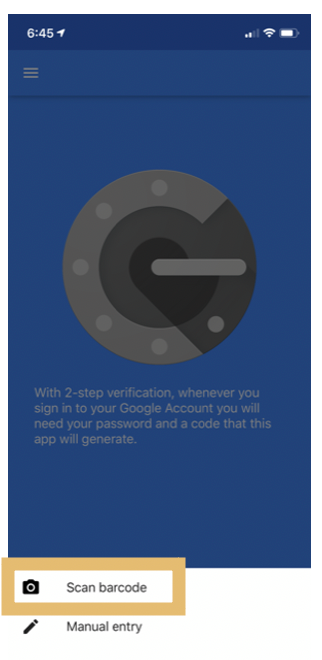
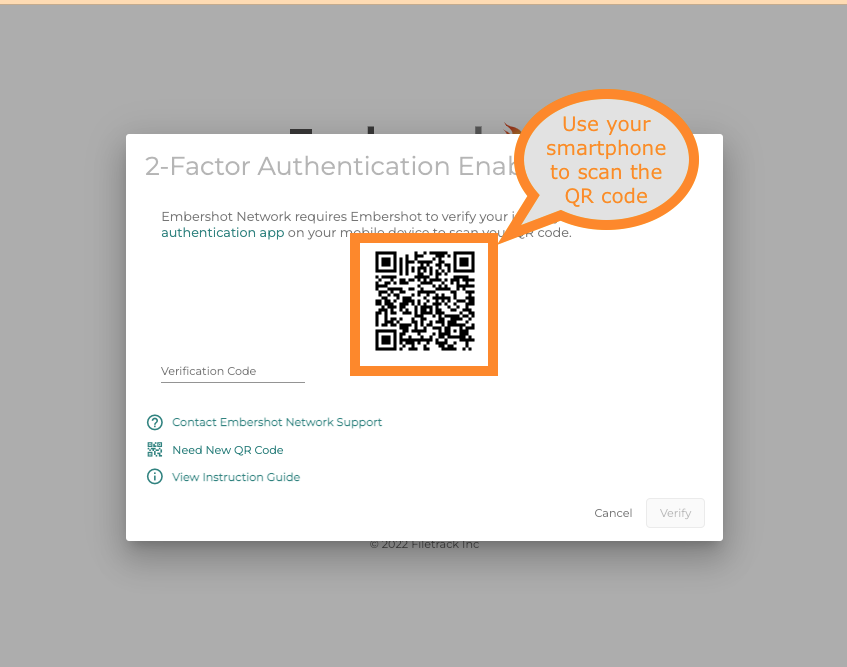
Step 4: Scan the QR code: Once you tap "Scan QR Code" or "Scan Barcode", your camera will appear on your mobile device. Hold up your mobile device camera up to the QR code shown on your screen. This will auto-enroll your Mobile Device into MFA.
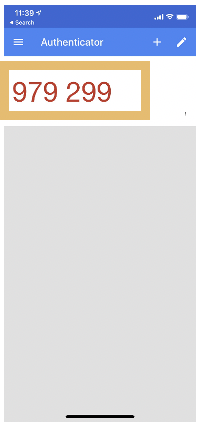
Step 5: Enter code: Within Google Authenticator, you will see a six-digit code, enter the code into Embershot, and click "submit". Note, "the six-digit code shuffles every minute." If the code changes before submission, try again.
Note: If you need help resetting your account after it has been reset, see How to reset your MFA Secret. Remember only file, project and site admins can reset MFA secrets. If you are not a project or site admin, you will need to reach out to the project or site admin associated with your account.