How to create a file link
Step 1: Click 'Share' on the desired file
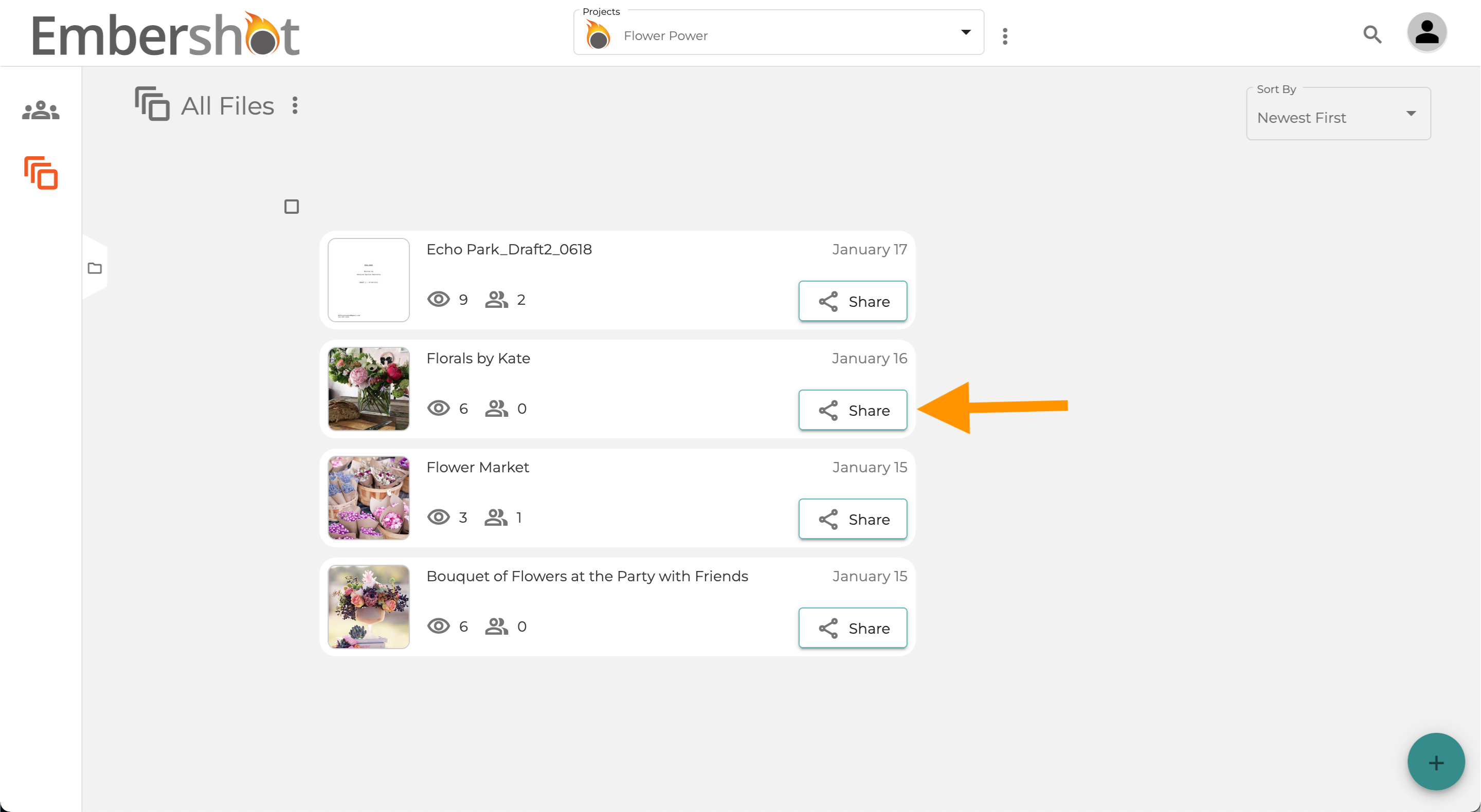
Step 2: Enter the users whom you would like to allow access and select the appropriate security permissions
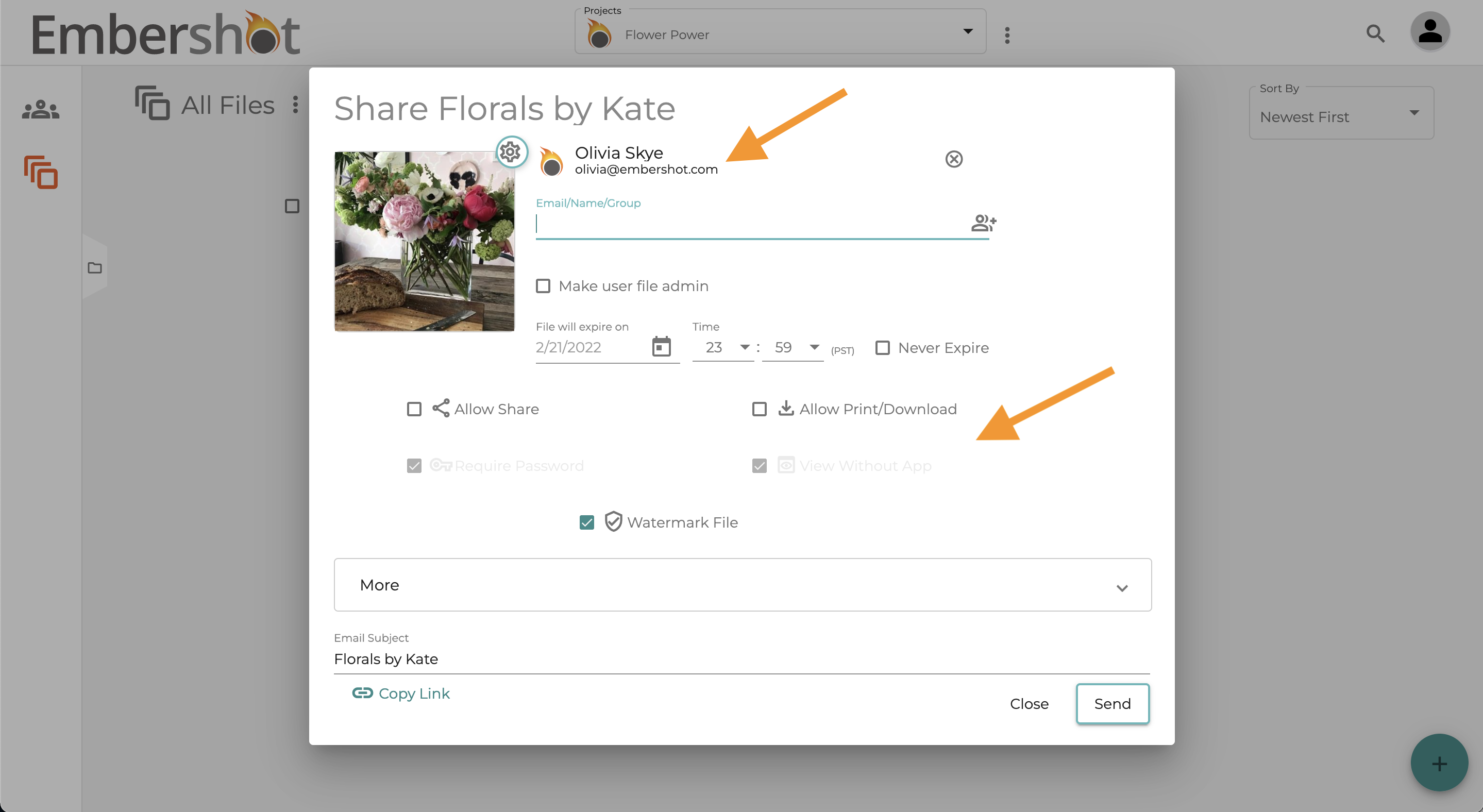
Step 3: Click on 'Create Link'
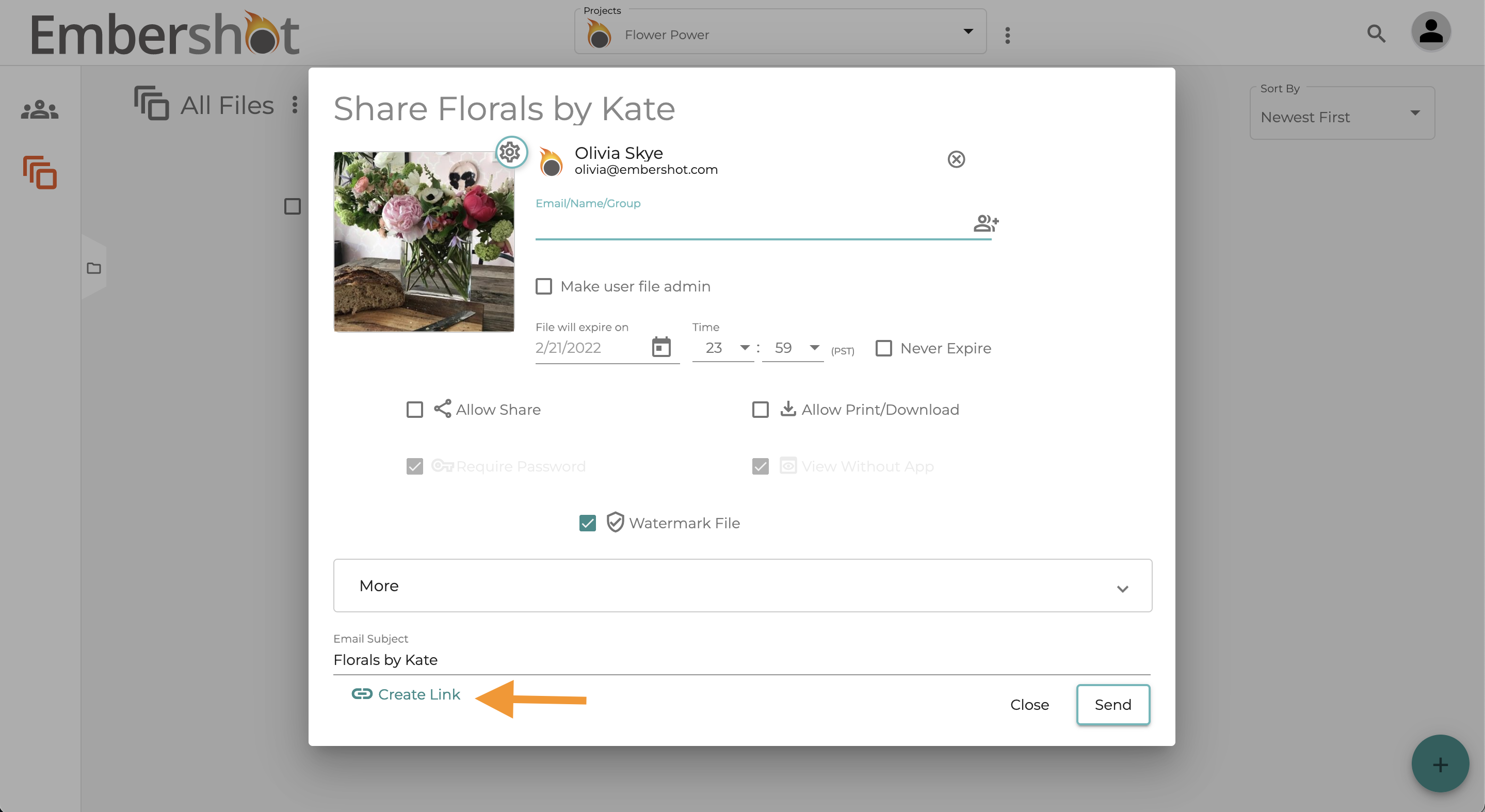
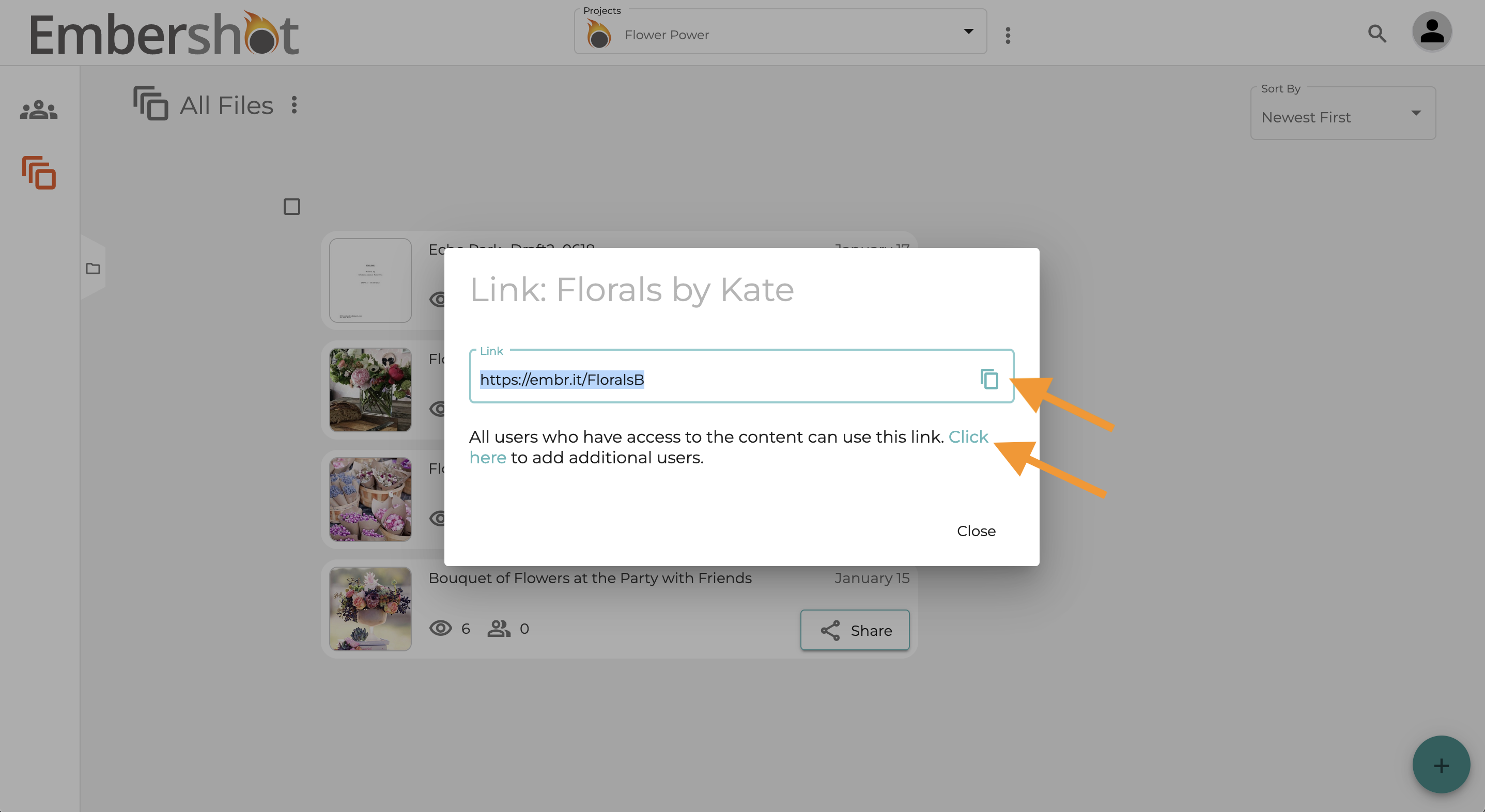
Step 4: The file's 'Link' popup appears.
Notes: Click the 'Copy' icon next to the link to copy link to clipboard.
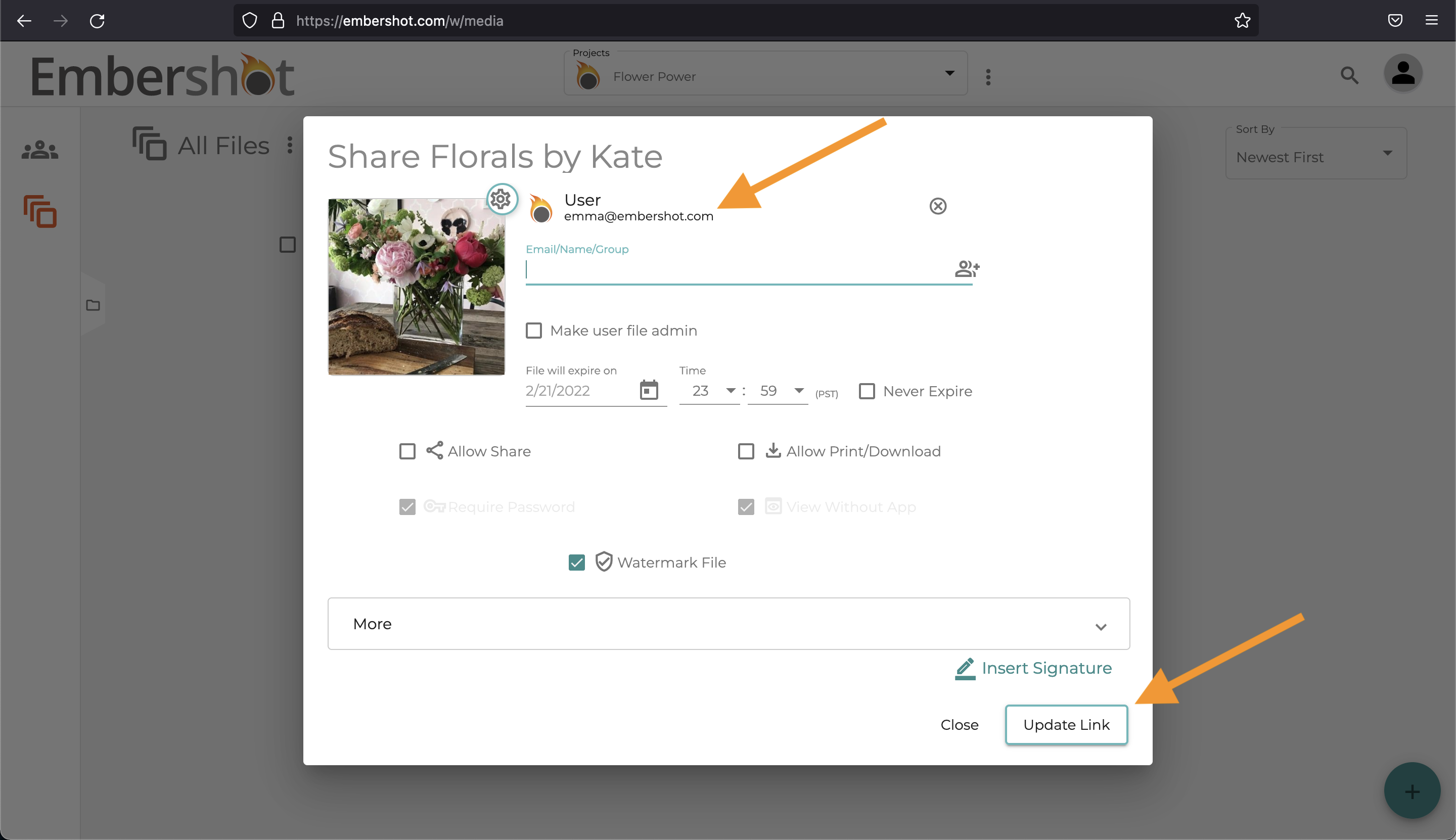
Click on 'Click here' to add additional link users.
When you click to add additional users, the 'Share' panel will popup again. Enter additional user names/emails/group and click 'Update Link' to update.
What people see when they open your link
People you share a link with sign in to Embershot with the email address you entered for them. There is no code to enter. Anyone who has never set an Embershot password is offered an email to set one, and the file opens as soon as they are signed in. Someone who signs in with an address you did not share with is told the file was not shared with them.