How to make a share link from an AI assistant
Connect your Embershot account to an AI assistant, such as Claude, and you can ask it to turn a PDF into an Embershot share link. Each reader confirms their email with a one-time code, reads a copy watermarked with it, and can't download or print it. You can also ask the assistant who opened the link, turn the link off or delete the file. Available with Pro and Enterprise accounts.
Connect your assistant (once)
Step 1: In your assistant's settings, add a connector (some assistants call it a custom connector or an MCP server) with this address:
https://embershot.com/mcp
In Claude Code, run claude mcp add --transport http embershot https://embershot.com/mcp, then type /mcp and choose Embershot.
Step 2: The assistant opens an Embershot page. Sign in to Embershot if asked.
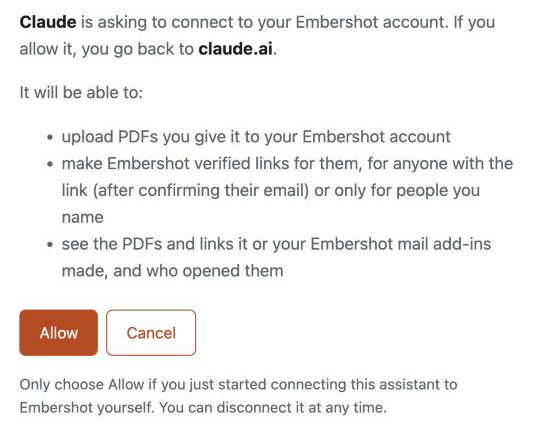
Step 3: Check that the page names your assistant and the place you started from, then click 'Allow'.
Make a share link
Step 1: Ask your assistant, for example: "Make an Embershot share link for a PDF."
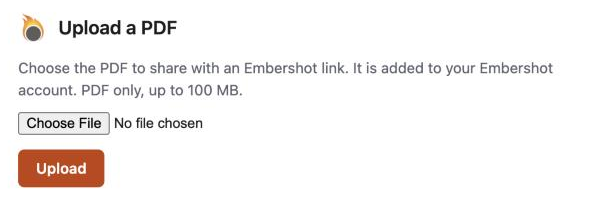
Step 2: An Embershot upload box appears in the conversation. Click 'Choose File', pick the file and click 'Upload'.
Step 3: When the upload finishes, the assistant makes the link and gives it to you.
Step 4: Send the link any way you like. Embershot doesn't email it to anyone.
An assistant that works with the files on your computer, such as Claude Code, uploads the file itself, so you skip step 2.
If no upload box appears
Some assistants can't show the upload box. The assistant gives you an upload link instead. Open it, click 'Choose File', pick the file and click 'Upload', then go back to the assistant and tell it the file is uploaded. It answers with the link.
Choose who can open it
Say what you want when you ask:
- Anyone with the link, after confirming their email (the default). Anyone you send it to, or who it's forwarded to, can open it, and each of them shows up in who opened it.
- Only people you name. For example: "Make a share link for this PDF that only alex@example.com and sam@example.com can open." Only those addresses get a code. A forwarded link doesn't let anyone else in. To add someone later, ask the assistant to add them to the link.
You can also ask for the link to stop working after a number of days, from 1 to 365. Otherwise it doesn't expire.
See who opened it
Ask your assistant, for example: "Who opened my Embershot link?" It lists each reader's email, how many times they opened the PDF, when, and how many pages they viewed.
Turn off a link or delete a file
Ask your assistant, for example:
- "Turn off my Q3 report Embershot link." The link stops working straight away, and anyone reading it is closed within a minute. The PDF stays in your account; ask for a new link if you need one, and it gets a new address.
- "Delete the Q3 report from Embershot." Every link to the PDF stops working, and the PDF moves to the trash in Embershot, as when you delete it there. You can restore it from the trash, but its old links stay off.
Embershot tells your assistant to check with you before it does either.
Disconnect an assistant
Step 1: In Embershot on the web, click on the 'Account' icon in the top right and select 'Account Settings'.
Step 2: Click 'Connected Apps'. It lists each assistant connected to your account, with where it connected through, when it was connected and when it was last used. Your Embershot add-ins for Outlook, Gmail and iPhone are listed there too.
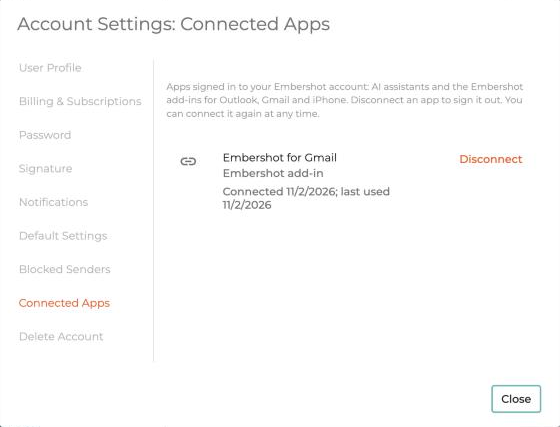
Step 3: Click 'Disconnect' next to the assistant, then 'Disconnect' again to confirm.
The assistant is signed out of your Embershot account straight away. The links it made keep working, and you can connect it again at any time. 'Connected Apps' is in Embershot on the web, not in the iPhone and Android apps.
Notes
- PDF, Word, Excel, PowerPoint, .txt, .rtf or a photo, up to 100 MB. An upload box or upload link takes one file and works for 15 minutes; ask the assistant for a new one if it runs out.
- The upload box and the upload page send the file from your browser straight to your Embershot account, not through the assistant.
- A PDF has one link. Asking again for the same PDF gives you the same link.
- The assistant sees the PDFs and links it made and the ones your Embershot add-ins for Outlook, Gmail and iPhone made, and who opened them. It doesn't see the other files in your account.
- Use the address exactly as shown above, without "www".
- Removing Embershot from your assistant's connectors stops the assistant from using your account, but it can stay signed in on Embershot's side. To be sure it is signed out, disconnect it in 'Connected Apps' as well.
- Changing your Embershot password or resetting two-step sign-in ends every connection at once; connect again afterwards.
- If the page says 'Embershot Pro needed', the account you signed in with is a Lite account. If it says links are off for your organization, ask your Embershot administrator or write to support@embershot.com.
See 'How to share a file with a share link' for more about share links.